Guide · Local AI · ~18 min read
Run local LLMs at home: Ollama, LM Studio, and llama.cpp
Running a large language model on your own PC keeps prompts private, avoids per-token cloud bills, and works offline. You do not need a datacenter — a modern desktop or laptop with a decent GPU (or patience on CPU) is enough to start. This guide compares the main tools on Mac, Windows, and Linux, suggests models (including Qwen and Gemma), covers vision and coding workloads, and explains tool calling.
What “local LLM” means
A local LLM is a neural network (billions of parameters) packaged so your machine loads weights into RAM or VRAM and generates text token by token. You download a checkpoint once (often several GB), then chat or call an API on localhost. Nothing is sent to OpenAI unless you wire that up yourself.
Models are usually distributed in quantized form (Q4_K_M, Q5, etc.) — smaller files with slightly lower quality — which is what makes 7B–14B models practical on consumer GPUs.
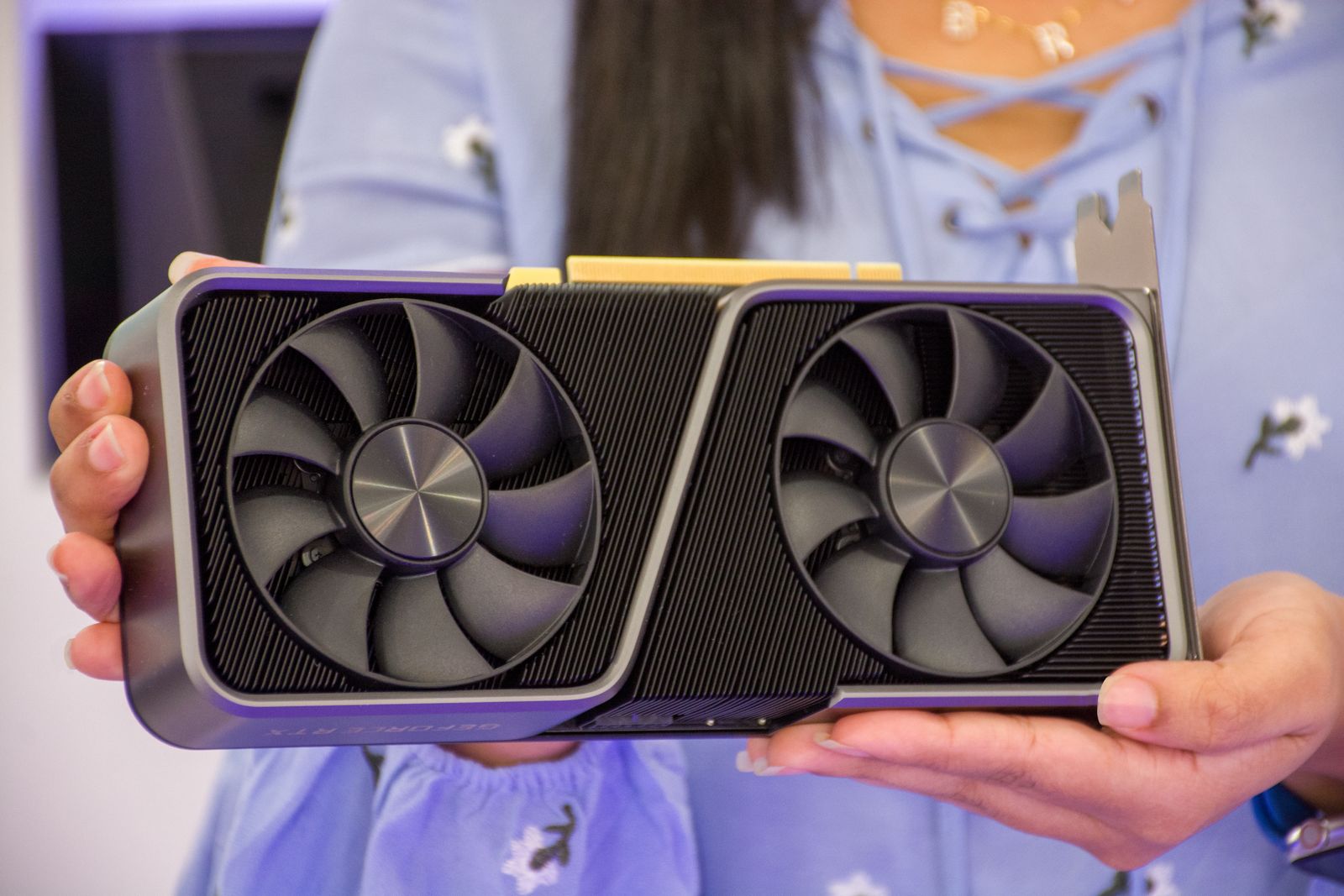
How much GPU memory do you need?
Very rough VRAM needs for common quantizations (your mileage varies):
- 7–8B @ Q4 — about 5–6 GB VRAM (comfortable on 8 GB cards)
- 14B @ Q4 — about 9–11 GB VRAM (sweet spot on 12 GB GPUs)
- 32B @ Q4 — about 18–22 GB VRAM (24 GB cards)
- 70B @ Q4 — 40 GB+ (dual GPU or unified memory Mac Studio class)
- CPU-only — possible but slow; 16–32 GB system RAM minimum for small models
Pick your runner: Ollama vs LM Studio vs llama.cpp
| Tool | Platforms | What it is | Best for | Typical entry point |
|---|---|---|---|---|
| Ollama | Mac, Windows, Linux | Easiest CLI + background service; huge model library; OpenAI-compatible API. | Daily driver, quick experiments, servers | ollama pull / ollama run |
| LM Studio | Mac, Windows, Linux | Friendly GUI; download GGUF models; built-in local chat and API server. | Beginners who prefer clicking over terminals | Search model → Download → Chat |
| llama.cpp | Mac, Windows, Linux | Fast C++ inference; CPU and GPU; powers many other tools under the hood. | Tweakers, edge devices, custom pipelines | llama-cli, llama-server |
Most people should start with Ollama or LM Studio. Reach for llama.cpp when you need maximum control, odd hardware, or you are embedding inference into your own C++/Python app.
Ollama — Mac, Windows, and Linux
Install
- macOS / Linux — official install script (see ollama.com) or package manager where available.
- Windows — download the installer from ollama.com; it runs as a background app with tray icon.
After install, the ollama CLI talks to a local service on port 11434.
# macOS / Linux (script from ollama.com — verify URL before piping)
curl -fsSL https://ollama.com/install.sh | sh

# Pull a model (downloads once)
ollama pull qwen2.5:7b

# Interactive chat
ollama run qwen2.5:7b

# List installed models
ollama list
Useful Ollama commands
ollama ps                    # what is loaded in memory
ollama stop qwen2.5:7b       # unload a model
ollama show qwen2.5:7b       # template, parameters, license
ollama pull llava            # vision example
ollama pull qwen2.5-coder:7b # coding-oriented variant
Ollama exposes an OpenAI-compatible HTTP API at http://localhost:11434/v1 — many apps (Continue, Open WebUI, etc.) plug in with base URL http://localhost:11434/v1 and a dummy API key.
LM Studio — GUI on all three desktops
LM Studio is ideal if you want to browse Hugging Face–style GGUF models, download with one click, and chat without touching a terminal. It can also start a local server (similar to Ollama’s API) so other tools connect to it.
- Download LM Studio for your OS from the official site.
- Open the Discover tab and search for a model (e.g.
Qwen2.5-7B-Instruct). - Pick a quantization (Q4_K_M is a good default for 8–12 GB GPUs).
- Load the model in Chat and send a test prompt.
- Optional: enable Local Server in settings and point apps at the shown host/port.
llama.cpp — the engine under many hoods
llama.cpp is the open-source inference project that popularized fast GGUF inference on CPU and GPU. Ollama bundles it; LM Studio uses compatible weights. You can invoke it directly for scripting and automation.
Build on Linux (example)
sudo apt update
sudo apt install -y build-essential cmake git
git clone https://github.com/ggml-org/llama.cpp
cd llama.cpp
cmake -B build -DGGML_CUDA=ON   # omit CUDA for CPU-only
cmake --build build --config Release -j

# Download a GGUF from Hugging Face into ./models/
./build/bin/llama-cli -m models/your-model.Q4_K_M.gguf -p "Hello" -n 128
macOS and Windows
- macOS — prebuilt releases on GitHub, or build with Xcode/clang; Metal backend is default on Apple Silicon.
- Windows — release ZIP with
llama-cli.exe, or build via CMake + Visual Studio; CUDA optional for NVIDIA.
For a small HTTP server (like Ollama’s API), use llama-server from the same build — handy for LAN-only tools and custom integrations.
Which model should I run?
Checkpoints go stale quickly. Treat the table below as families and roles; in Ollama run ollama search qwen or browse the library online for exact tag names (e.g. qwen2.5:14b, gemma3:12b).
| Use case | Examples | Good for | Hardware hint |
|---|---|---|---|
| General chat | Qwen 2.5 / Qwen 3 (7B–14B), Llama 3.x, Mistral, Gemma 3 | Email drafts, summaries, brainstorming, RAG over your notes | 8–16 GB VRAM for 7B–14B at Q4; 24 GB+ for 32B class |
| Coding | Qwen2.5-Coder, DeepSeek-Coder, CodeLlama, StarCoder2 | Autocomplete, refactors, explaining legacy code, shell one-liners | Dedicated 7B–14B coder often beats a huge general model at code |
| Reasoning / math | Qwen 2.5 (72B) if you have VRAM, or smaller “instruct” tiers | Step-by-step problems, planning, structured answers | Slower and hungrier; use only if quality gap matters to you |
| Vision (images) | LLaVA, Qwen2-VL / Qwen-VL, Llama 3.2 Vision, Gemma vision variants | Describe screenshots, read diagrams, OCR-style extraction | Needs a multimodal checkpoint — plain text models cannot see pixels |
| Tool calling | Qwen 2.5 (tool-tuned), Llama 3.1+, Mistral Nemo, models tagged “tools” in Ollama | Let the model call search, calculators, APIs, or your scripts | Host app must parse JSON tool requests and return results to the model |
Qwen (Alibaba) — strong all-rounder
The Qwen 2.5 and Qwen 3 lines are excellent general instruct models, with separate Qwen2.5-Coder builds for programming. They balance multilingual support, tool use, and reasonable size. On 12 GB VRAM, qwen2.5:7b or qwen2.5:14b are common daily drivers; bump to 32B only if you have the VRAM and want denser reasoning.
Google Gemma (Gemma 3 and Gemma 4 class)
Google’s Gemma open models are tuned for safety and efficiency. Gemma 3 is widely available in Ollama and LM Studio today. Newer Gemma 4 checkpoints (when published to open hubs) follow the same idea: smaller sizes punch above their weight for chat and instruction following. Look for gemma3 / gemma4 tags in your runner’s catalog — names vary by host. Some Gemma builds add vision inputs; use those only if the model card says multimodal.
Coding-focused models
For IDE assistants and “fix this function” workflows, a dedicated coder model often beats a general 70B model on latency and relevance. Try qwen2.5-coder:7b, deepseek-coder-v2, or similar in Ollama. Pair with your editor via Continue, Cursor’s local mode, or an OpenAI-compatible plugin pointed at localhost.
Vision / multimodal — describe images
Standard text LLMs cannot see images. Multimodal models add a vision encoder so you pass a PNG/JPEG path or bytes and ask “what’s in this screenshot?”
- LLaVA — classic open vision chat; easy in Ollama (
ollama pull llava). - Qwen2-VL / Qwen-VL — strong document and UI screenshot understanding.
- Llama 3.2 Vision — Meta’s multimodal line; check Ollama for current tags.
- Gemma vision — use only vision-capable Gemma checkpoints, not plain text Gemma.
# Ollama vision example (paths depend on version)
ollama run llava "Describe this image in detail: /path/to/screenshot.png"
Tool calling (function calling)
Tool calling lets the model emit structured requests — “call function get_weather with {"city": "Berlin"}” — instead of guessing facts. Your app runs the function, feeds the result back, and the model writes the final answer. This is how local agents search the web, query databases, or flip smart-home switches safely.
You need: (1) a model trained or fine-tuned for tools, (2) a host that understands the model’s tool JSON format, (3) your actual functions implemented in code.
Ollama chat API with tools (concept)
curl http://localhost:11434/api/chat -d '{
  "model": "qwen2.5:7b",
  "messages": [{"role": "user", "content": "What is 19 * 23?"}],
  "tools": [{
    "type": "function",
    "function": {
      "name": "calculator",
      "description": "Multiply two integers",
      "parameters": {
        "type": "object",
        "properties": {
          "a": {"type": "integer"},
          "b": {"type": "integer"}
        },
        "required": ["a", "b"]
      }
    }
  }],
  "stream": false
}'
If the model returns a tool_calls payload, execute your Python/JS function, append a tool message with the result, and call /api/chat again. Frameworks like LangChain, LlamaIndex, and Open WebUI automate this loop.
Typical setups by platform
Windows gaming PC + NVIDIA
Install Ollama or LM Studio, install latest NVIDIA drivers, pull a 7B–14B Qwen or Gemma model. Use Task Manager → Performance → GPU to confirm VRAM use while generating.
macOS (M1/M2/M3/M4)
Ollama or LM Studio with Metal backend. Prefer models that fit in unified memory; close browser tabs before loading 14B+. Xcode command-line tools needed only if building llama.cpp yourself.
Linux desktop or headless server
Ollama as a systemd user service, or Docker image from Ollama. For a homelab NAS that also serves files, see our DIY NAS guide — keep heavy inference on a desktop GPU unless you have a low-power box with an iGPU and modest expectations.
Quality tips that save frustration
- Start with 7B Q4 — upgrade only if answers are consistently too shallow.
- Match context length to your docs; huge contexts eat VRAM even if the model fits.
- Use system prompts (“You are a concise Linux assistant”) — cheap quality win.
- For RAG, embed chunks with a small embedding model; do not paste 200 pages into one prompt.
- Keep cloud API keys out of repos; local does not mean your scripts are secret on GitHub.
Summary
Install Ollama or LM Studio on your OS, pull a quantized Qwen or Gemma model sized to your VRAM, and branch out to coder or vision checkpoints when you need them. Use llama.cpp when you want the bare metal. Add tool calling when the model should trigger real actions — with strict, reviewed functions on your side.
Need hardware? Compare GPUs on hwprice with the local LLM quick pick, or browse NAS builds for storing datasets and backups.
Comments
Questions, corrections, or your own NAS build notes? Join the discussion below.
Loading comments…